
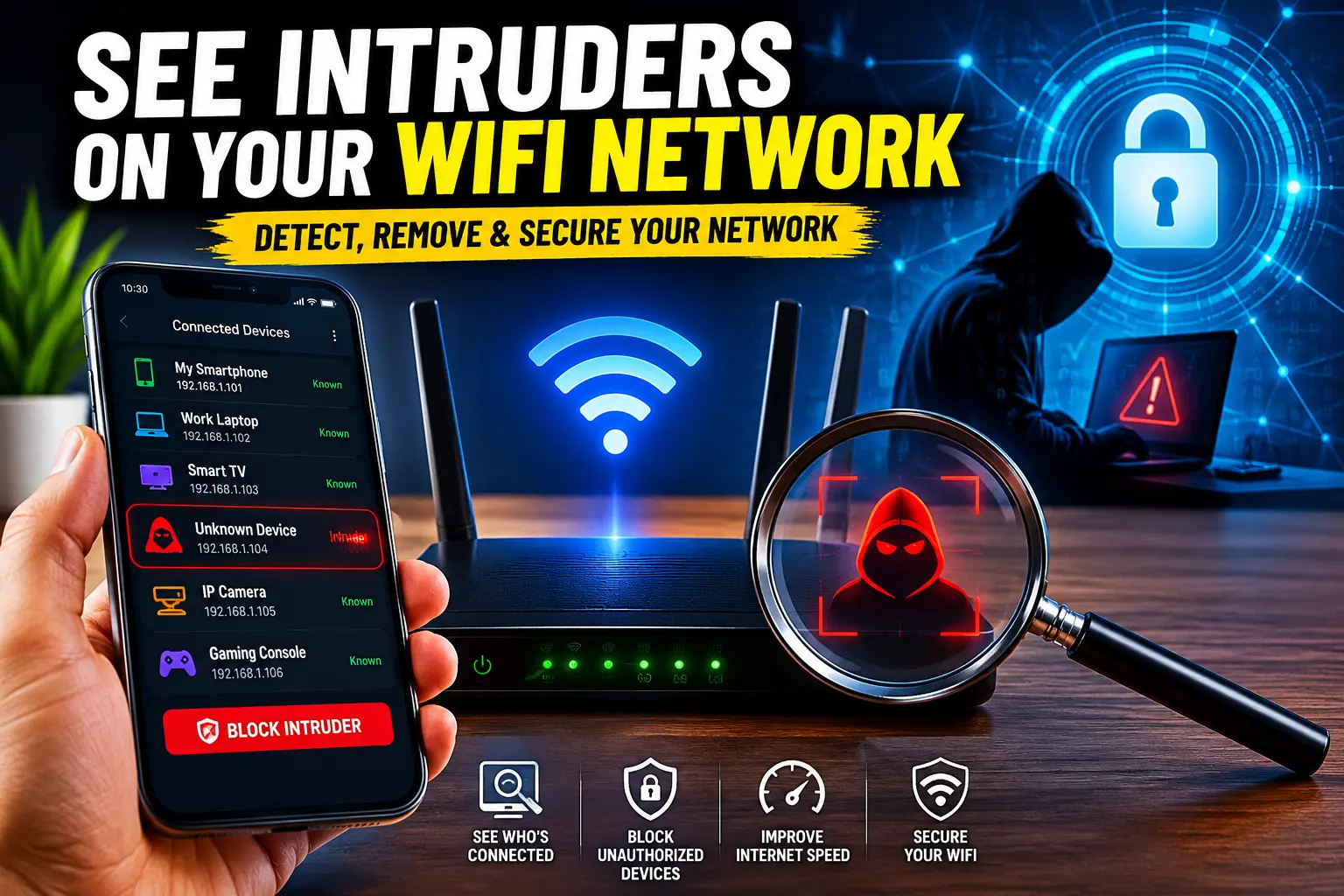
See Intruders on Your WiFi Network If you’ve ever noticed your internet becoming unusually slow, experienced random connection drops, or suspected that someone might be using your wireless connection without permission, you’re not alone. Many homeowners and internet users never realize that unauthorized devices can connect to their WiFi network without obvious warning signs. In some cases, neighbors guess weak passwords, former guests remain connected, or cybercriminals exploit poor network security settings. As a result, these unknown users consume bandwidth, reduce internet performance, and potentially expose sensitive information shared across your home network. Fortunately, modern routers provide several ways to see intruders on your WiFi network and take immediate action. By regularly monitoring your connected devices, you can identify suspicious activity before it becomes a serious problem. Most people assume that WiFi theft only affects internet speed, but unauthorized access can also create privacy and security risks. An intruder who gains access to your network may attempt to discover vulnerable devices, exploit outdated software, or target smart home equipment connected to the same network. Therefore, understanding how to detect unauthorized devices should be an essential part of maintaining a secure home internet environment. The good news is that you do not need advanced technical skills to identify suspicious connections. Most routers, mobile apps, and network monitoring tools offer simple ways to view active devices and protect your connection from unwanted users.
Signs That Someone May Be Using Your WiFi Without Permission
Before you actively search for unauthorized users, it helps to recognize the warning signs that often indicate suspicious activity. One of the most common symptoms is a sudden decrease in internet speed despite no changes in your usage habits. If streaming services buffer frequently, online games experience unusual lag, or downloads take much longer than normal, another device may be consuming your bandwidth. Although network congestion can occur for legitimate reasons, repeated slowdowns deserve further investigation. Another warning sign involves unexpected activity from your router. For example, the router’s indicator lights may continue flashing heavily even when nobody in your household is actively using the internet. Similarly, you may receive notifications from your internet provider regarding unusual network usage patterns. Smart home devices can also reveal clues. If your security cameras disconnect unexpectedly, your smart TV behaves strangely, or connected devices lose stability, unauthorized users may be placing additional strain on the network. Some users also discover unknown device names while reviewing their router dashboard. Devices with unfamiliar labels, unusual manufacturer names, or unidentified hardware information often require closer inspection. While these signs do not automatically confirm an intruder’s presence, they should encourage you to perform a thorough review of your network. Taking action early can prevent bandwidth theft, strengthen WiFi security, and reduce the risk of unauthorized access to personal information.
How to See Every Device Connected to Your WiFi Network
The easiest way to see intruders on your WiFi network involves checking the list of active devices connected to your router. Most modern routers provide a management interface that displays all currently connected equipment. To access this information, open a web browser and enter your router’s management address, which often appears on a label attached to the device. After logging in with administrator credentials, navigate to sections labeled “Connected Devices,” “Device List,” “Network Map,” or similar options. Here, you’ll find a complete inventory of devices currently using your wireless network. The list typically includes smartphones, laptops, tablets, gaming consoles, smart TVs, printers, and Internet of Things devices. Each entry often displays a device name, IP address, connection status, and MAC address. Carefully compare the displayed devices against equipment you recognize. If you discover unfamiliar devices, investigate further before assuming they belong to an intruder. Family members may own devices you forgot about, or smart home products may appear under manufacturer-specific names. Many router manufacturers also provide mobile applications that simplify device monitoring. These apps allow users to review connected devices, receive alerts, and manage access directly from a smartphone. In addition, several network scanning tools can identify devices connected to your network and provide more detailed information about their hardware manufacturers. By regularly reviewing connected devices, you maintain greater visibility into network activity and improve overall network monitoring practices.
Understanding IP Addresses and MAC Addresses to Identify Unknown Devices
When examining connected devices, understanding the difference between an IP address and a MAC address can make identification much easier. An IP address serves as a temporary network identifier assigned by the router, while a MAC address represents a unique hardware identifier permanently associated with a specific device. Every smartphone, laptop, tablet, and smart device contains its own MAC address. Because these identifiers remain relatively consistent, they help network administrators recognize individual devices more accurately. Suppose you notice a device labeled with a generic name such as “Unknown Device” or “Android Device.” In that case, the MAC address may reveal the hardware manufacturer and provide clues about the device’s identity. Many online databases allow users to check manufacturer information associated with specific MAC address prefixes. This process helps determine whether a device belongs to a known brand or appears suspicious. Additionally, comparing connection times and usage patterns can help identify unauthorized users. For example, if an unknown device repeatedly connects during specific hours, you may gain valuable insight into potential network misuse. Understanding these identifiers also helps when blocking unwanted devices from your router. Rather than guessing which device belongs to an intruder, you can confidently select the correct hardware entry and restrict access. Developing familiarity with IP addresses and MAC addresses strengthens your ability to manage network security effectively and maintain better control over your internet environment.
How to Remove Intruders and Strengthen Your WiFi Security
Once you identify suspicious devices, you should take immediate action to secure your network. The most effective solution involves changing your WiFi password and reconnecting only trusted devices. Choose a strong password that combines uppercase letters, lowercase letters, numbers, and special characters. Avoid predictable passwords based on names, birthdays, or simple dictionary words. Next, ensure that your router uses WPA2 or preferably WPA3 encryption. These security standards provide stronger protection against unauthorized access and help prevent password-cracking attempts. Many modern routers also support device blocking features that allow administrators to deny access based on a device’s MAC address. This capability enables you to remove unwanted users even before changing network credentials. Creating a separate guest network for visitors can further improve security by isolating temporary users from your primary devices. Additionally, regularly updating router firmware helps eliminate vulnerabilities that attackers might exploit. Many users overlook firmware updates, yet manufacturers frequently release security improvements that strengthen overall network protection. Enabling the router’s built-in firewall adds another layer of defense by filtering suspicious traffic. Combined with strong passwords and modern encryption, these measures significantly reduce the likelihood of future intrusions. By adopting these best practices, you can maintain stronger WiFi security, improve internet performance, and protect personal information from unauthorized access.
Final Thoughts
Learning how to see intruders on your WiFi network is an important skill for anyone who relies on a home internet connection. Unauthorized devices can consume bandwidth, slow internet performance, and introduce unnecessary security risks. Fortunately, modern routers make it relatively simple to monitor connected devices, review IP addresses, examine MAC addresses, and identify suspicious activity. Regular network reviews help you maintain awareness of who accesses your connection and allow you to respond quickly when unfamiliar devices appear. Strong passwords, updated firmware, WPA3 encryption, a secure guest network, and proper network monitoring practices all contribute to a safer internet environment. Rather than waiting for major performance issues or security concerns to arise, take a proactive approach to protecting your network. A few minutes spent reviewing device connections today can prevent significant problems tomorrow. With the right tools and habits, you can maintain a secure WiFi network, enjoy faster internet speeds, and keep unauthorized users off your connection.
Frequently Asked Questions
How can I see who is connected to my WiFi?
Log in to your router administration panel and view the connected device list to see all active devices.
What is the easiest way to remove WiFi intruders?
Change your WiFi password, reconnect trusted devices, and block suspicious hardware using its MAC address.
Can someone use my WiFi without knowing the password?
It is difficult when strong WPA2 or WPA3 encryption is enabled, but weak passwords increase the risk.
What should I do if I find an unknown device?
Identify the device, block it if necessary, update your password, and review all network security settings.
How often should I check my connected devices?
Review your network at least once a month or whenever you notice unusual internet performance.